
For Free Users:
Step 1: You need to create a new page(Example – Page A) and then select “Front Page Template” from the drop-down page template options –

Step 2: To display that page(Example – Page A) as Frontpage go to – Dashboard->Settings ->Reading->Front page displays->A static page (select below) and then select the page with Front Page Template –

Step 3: After setting up the frontpage, Go to frontpage and click customize on top left corner of your window –

Step 4: Once you are in the customizer go to Frontpage->Frontpage->click “Add a widget here” you can now add/delete/modify widgets on your frontpage –
After Adding/modifying widgets finally click “Save Changes” on top of the customizer.
For Pro Users:
Step 1: Install One Click Demo Import Plugin
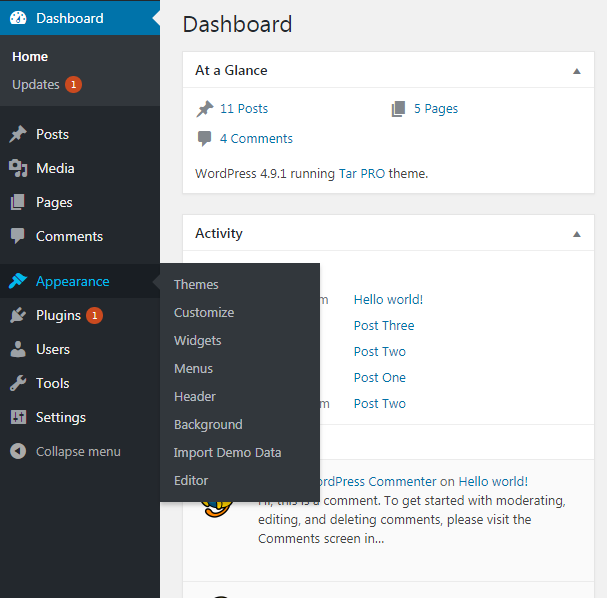
Step 2: Go to Dashboard->Appearance->Import Demo Data
Step 3: Click “Import” on the template you want to import

Step 4: Click “Yes, Import” and wait for the import to finish the importing.
Step 5: To edit/customize the frontpage, Go to frontpage and click customize on top left corner of your window and you will see all the customization option in the customizer.
Note: If you get errors about “Boxzilla” don’t worry about it. It not significant and wouldn’t effect in your site. Once done you can deactivate the plugin.